 BeforeAfter
Feature 1
Restore faces
For soft faces in portraits and old family photos. Face restoration may change facial details. Compare identity and skin texture before saving.
Try this modeChoose face restoration, noise reduction, compression cleanup, or strong restoration. Compare your result and download the enhanced photo.
Upload PhotoOpen the editor to upload your image1 credit per AI task after sign-in. JPG, PNG, WebP; up to 20 MB.
 BeforeAfter
What it improves
Choose face restoration, noise reduction, compression cleanup, or strong restoration. Compare your result and download the enhanced photo.
BeforeAfterFor soft faces in portraits and old family photos. Face restoration may change facial details. Compare identity and skin texture before saving.
Try this mode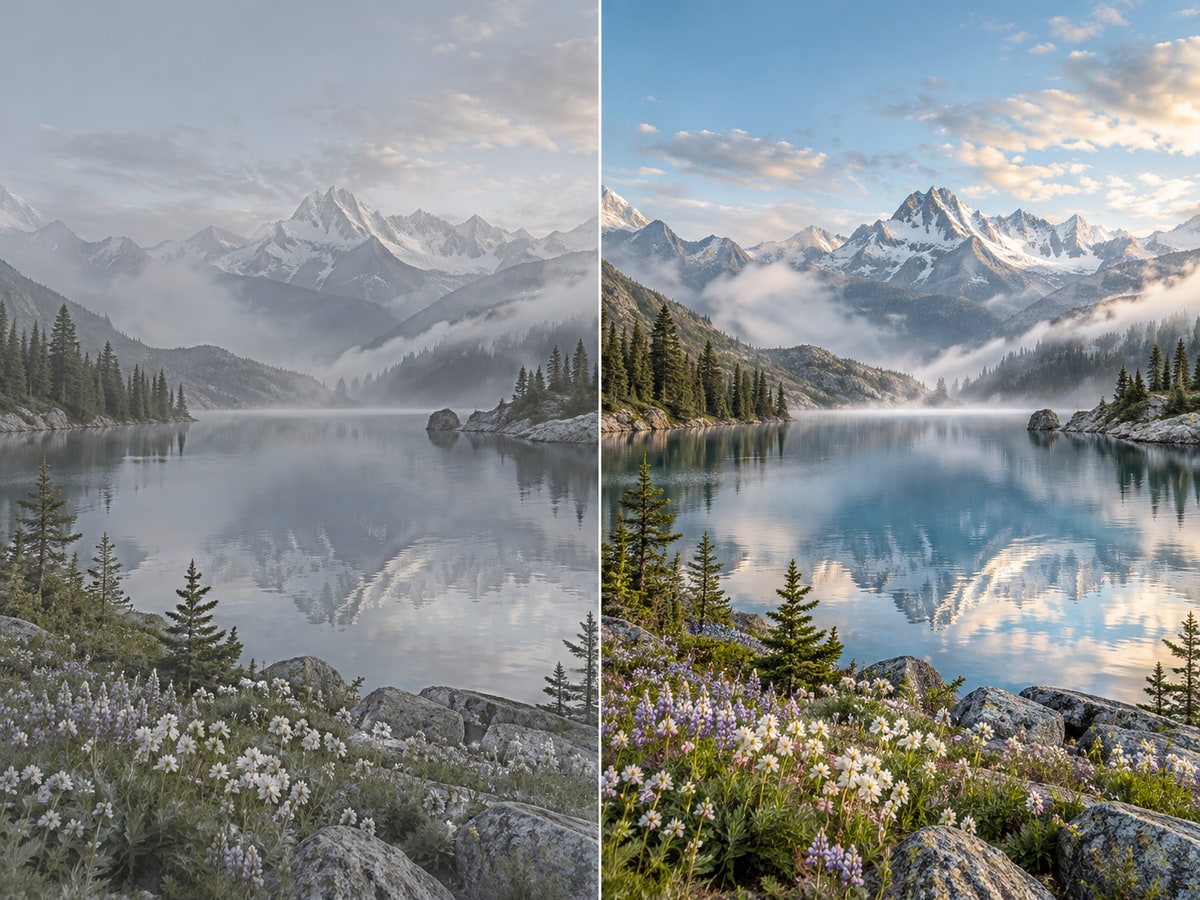 BeforeAfter
For grain, colored speckles, and noisy low-light photos. Reduces real photo noise without adding synthetic noise. Very fine texture may become smoother.
Try this mode BeforeAfter
For JPEG artifacts, rough edges, and repeatedly shared images. Cleans up detail at the same output scale. Check small text and product labels; lost content cannot be reliably recovered.
Try this mode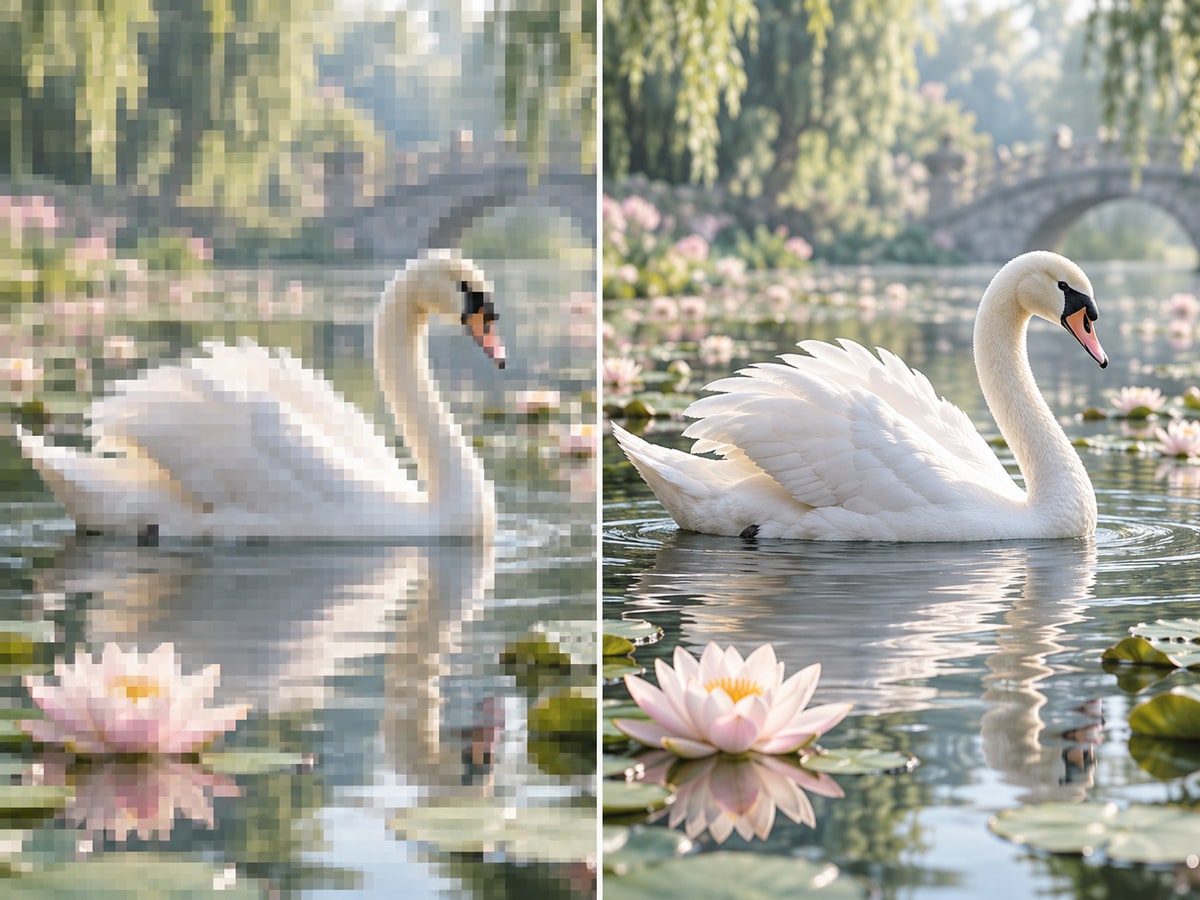 BeforeAfter
For blur and mixed damage that needs stronger detail reconstruction. May reconstruct or change faces, text, and textures. Use this when visual clarity matters more than exact detail fidelity.
Try this mode BeforeAfter
Built for real photos
Choose a mode based on the problem in your photo. The images below illustrate use cases; they are not benchmarks for the connected models.
 BeforeAfter
Restore soft faces; review identity and skin texture in the result.
 BeforeAfter
Clean up compression and edges; check logos and product labels carefully.
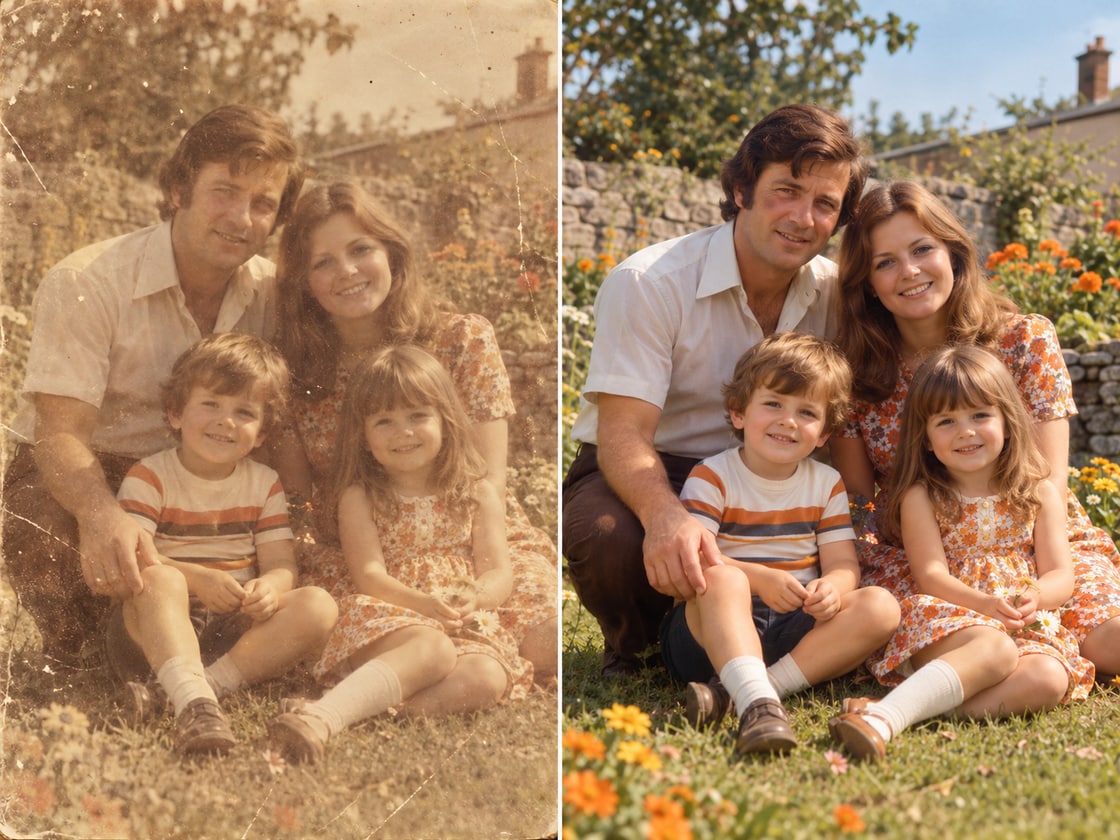 BeforeAfter
Try face restoration or noise reduction for old scans. Scratch removal and colorization are separate tasks.
 BeforeAfter
Clean up compressed images before sharing them again.
 BeforeAfter
Reduce low-light grain; adjust exposure separately in the editor.
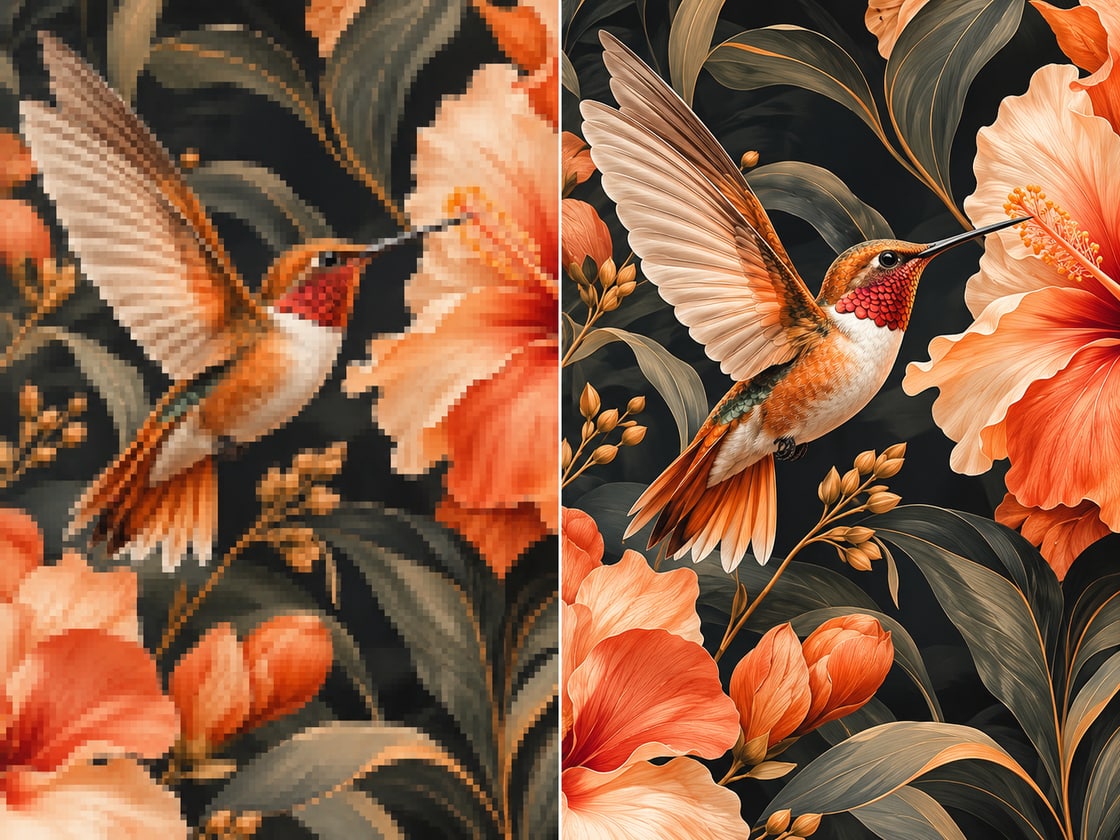 BeforeAfter
Try stronger reconstruction on soft illustrations and AI images; inspect any changed details.
Designed for control
Choose the problem you want to fix, compare the result, and export when you are satisfied.
Review the output before applying it. Reconstruction can change details, especially in faces and text.
Choose face restoration, noise reduction, compression cleanup, or strong restoration. Compare your result and download the enhanced photo.
Open the AI photo enhancer on desktop, tablet, or mobile without installing traditional editing software.
See preview limits and processing status before you enhance or export a photo.
Learn about the available modes, processing limits, and cloud uploads.
Choose a mode, enhance, compare, then export. Each AI task uses 1 credit.
 BeforeAfter