

AI Photo Background Remover

Use our AI photo background remover for portraits, products, and creative assets. Upload your photo, isolate its subject, and download a reusable transparent cutout.

Remove BackgroundUpload your photo in the editor1 credit per AI task after sign-in.
Illustrative comparison of a woman in a sunlit rose garden and her transparent portrait cutout
With backgroundCutout example
↔

A clearer subject

Remove Photo Backgrounds, Keep the Focus

An AI photo background remover separates a subject from its surroundings so the image can fit a different layout. A useful cutout needs more than an empty backdrop: recognizable contours, preserved details, and the right file format all matter. These illustrative comparisons explain what to look for before reusing your image.

Illustrative curly-haired portrait on a warm backdrop and transparency grid
BackgroundCutout example
Feature 1

Separate People from Busy Backdrops

A portrait should keep its expression, hairstyle, and clothing when the setting changes. An AI photo background remover aims to separate those foreground details from distracting surroundings. Start with a clearly visible person, leave space around the head and shoulders, and avoid cropping away anything you will need in the final composition.

Prepare a Portrait
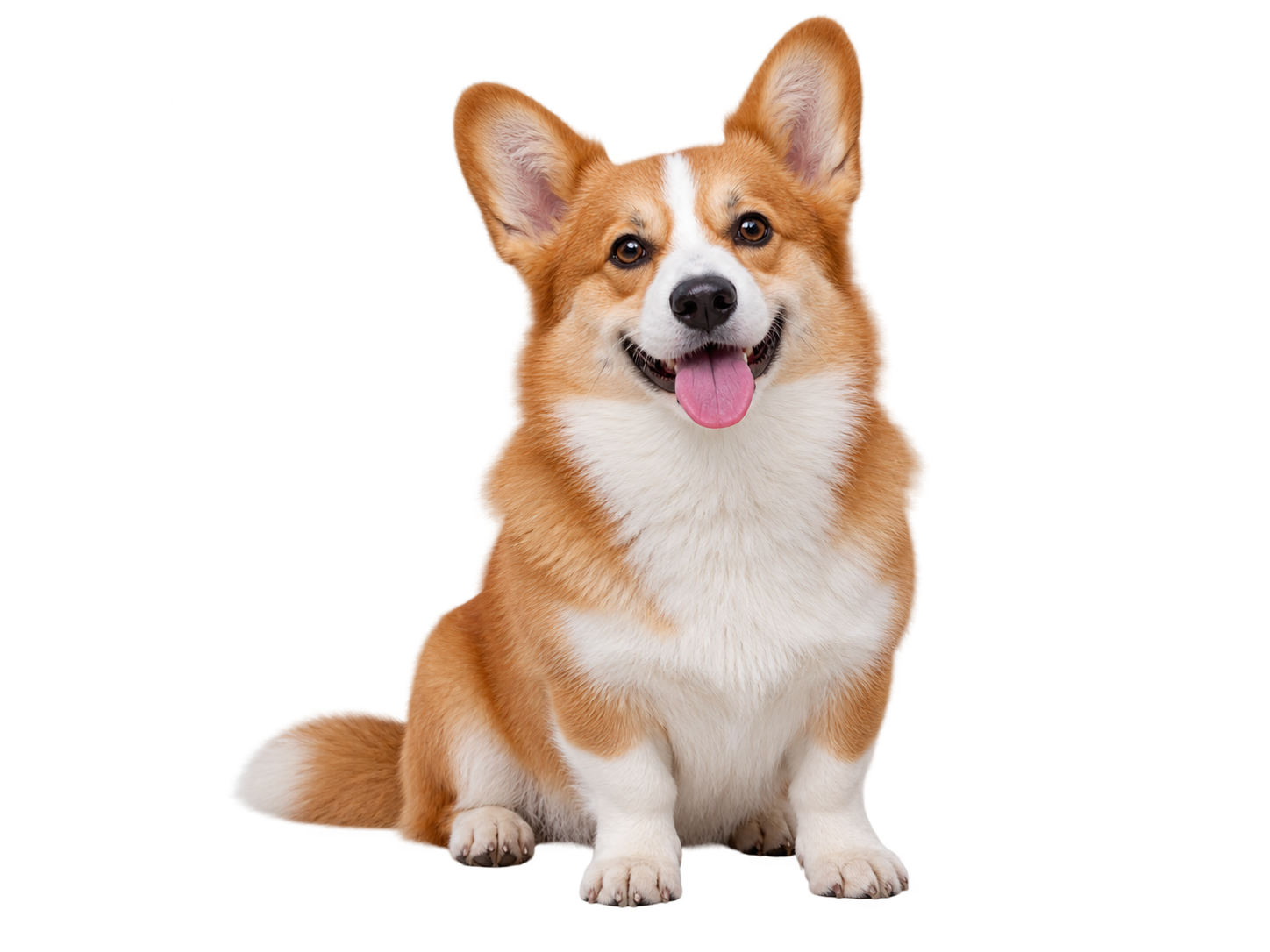
Illustrative corgi cutout showing fur contours against a neutral backdrop and transparency grid
BackgroundCutout example
Feature 2

Check Hair, Fur, and Fine Edges

Loose curls, soft fur, and thin straps need closer inspection than a simple solid outline. View edges against both light and dark backgrounds to spot leftover color or missing detail. For an AI photo background remover, a sharp original with clear subject contrast is a better starting point than a tiny compressed screenshot.

Explore Edge Details
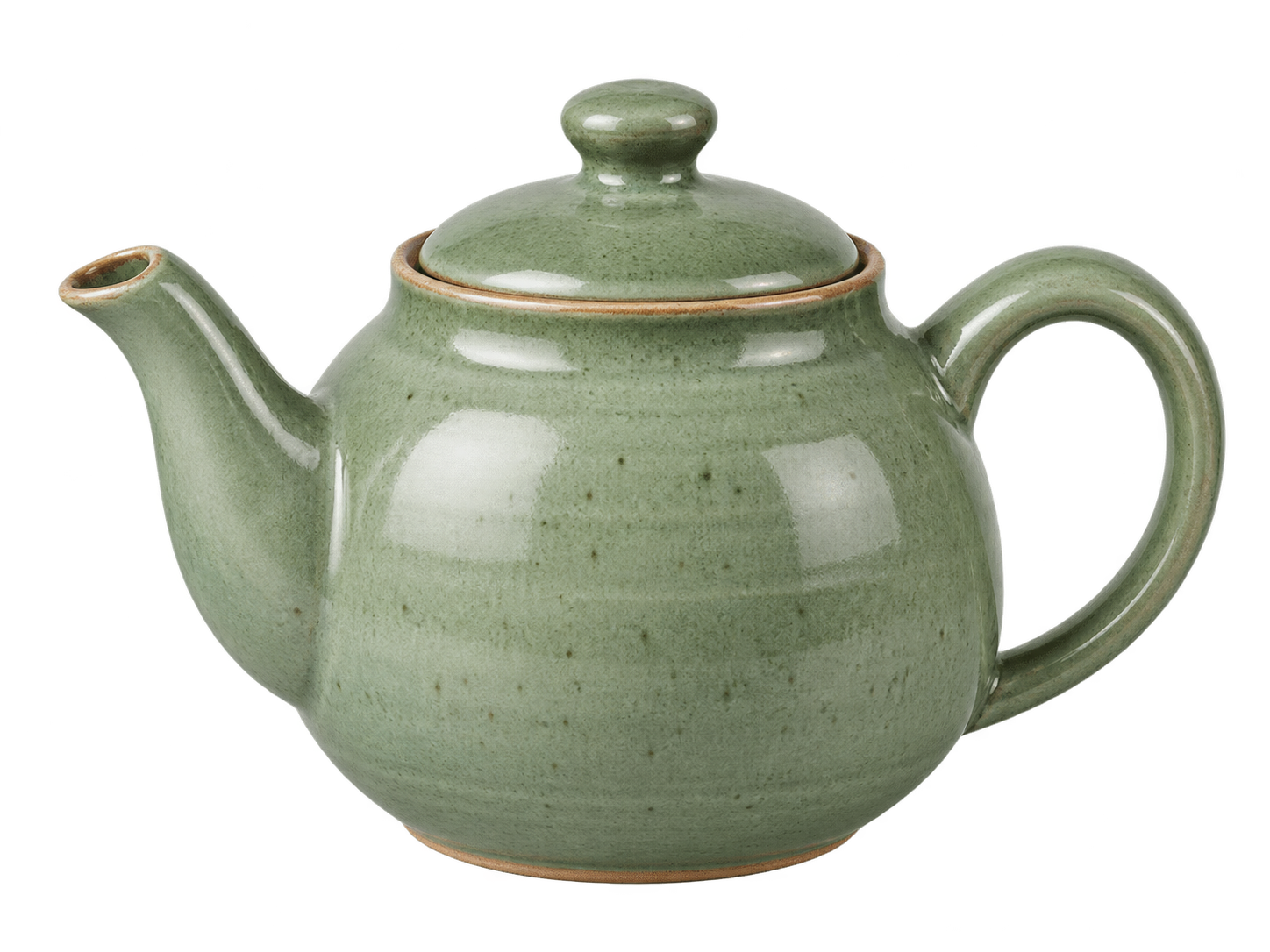
Illustrative sage ceramic teapot cutout with its curved handle and spout preserved
BackgroundCutout example
Feature 3

Prepare Product Photos for White Backgrounds

A consistent backdrop helps shoppers focus on shape, material, and color across a catalog. Keep the entire item visible, including handles and narrow openings. A cutout is only the first step: check the destination's image requirements, choose the right crop, and review shadows before placing a product on a white listing background.

Prepare a Product Photo
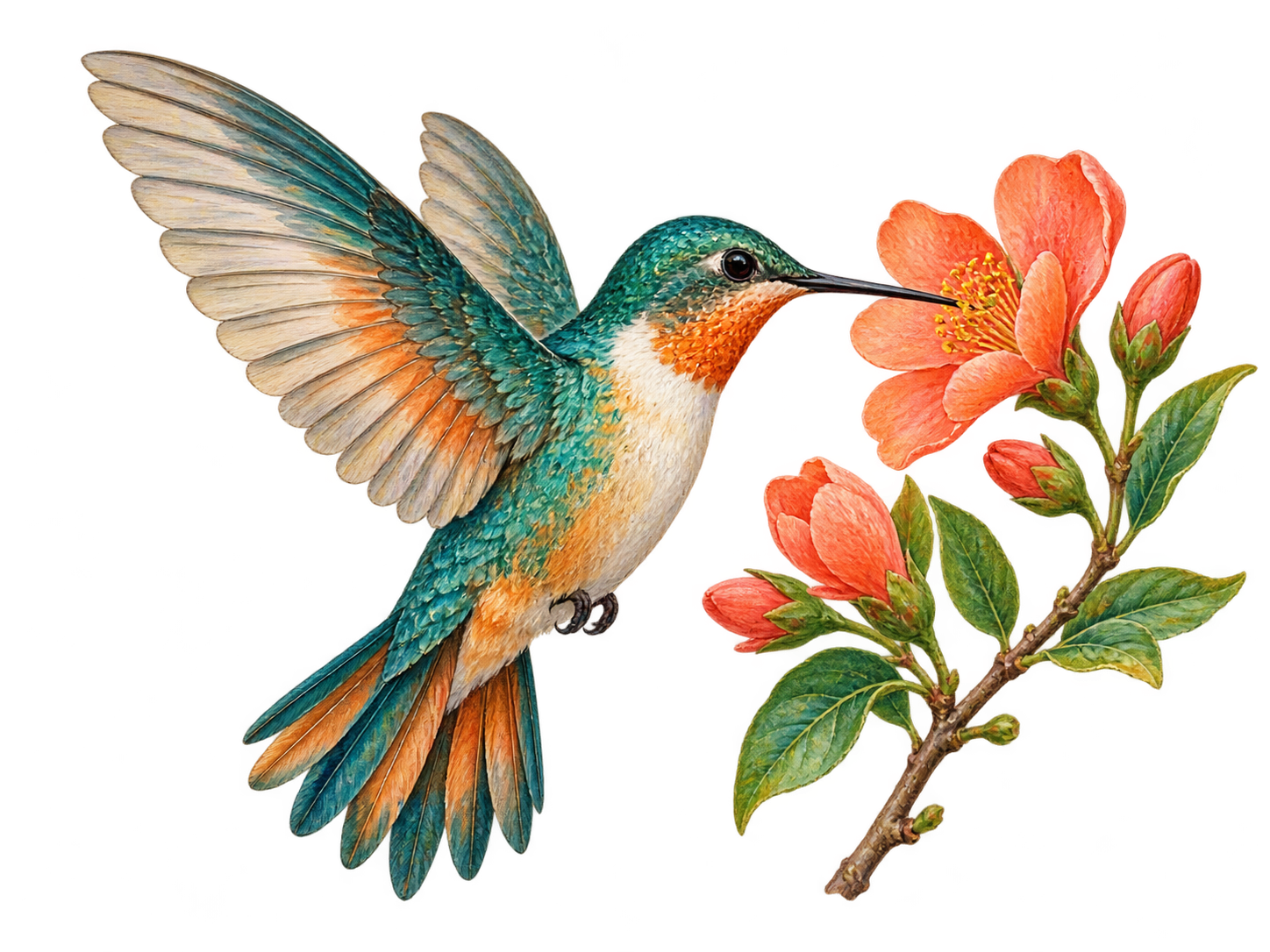
Illustrative watercolor hummingbird and blossom isolated for reuse in a design
BackgroundCutout example
Feature 4

Plan Transparent PNGs for Reusable Assets

Use a transparent PNG when a subject needs to sit over slides, banners, or a new scene. A white JPEG cannot retain that transparency, and a screenshot of a checkerboard is not a cutout. Keep a high-quality original, then check the exported file in its destination layout before sharing the finished design.

Explore Creative Cutouts
Illustrative teapot background removal preview, not a live processing result
With backgroundCutout example
↔

How to Remove a Photo Background

From photo to layout

Background Cutouts for Products, People, and Art

Match the cutout to the job: a profile portrait, a consistent catalog, a pet collage, or a creative layout. These generated examples show six ways to think about subject isolation with an AI photo background remover, rather than live processing results.

Generated professional portrait of a man with glasses and a navy blazer
BackgroundCutout example
01

Portraits and Profile Photos

Keep hair and shoulders visible for team pages, speaker cards, and avatars without distracting scenery behind the person.

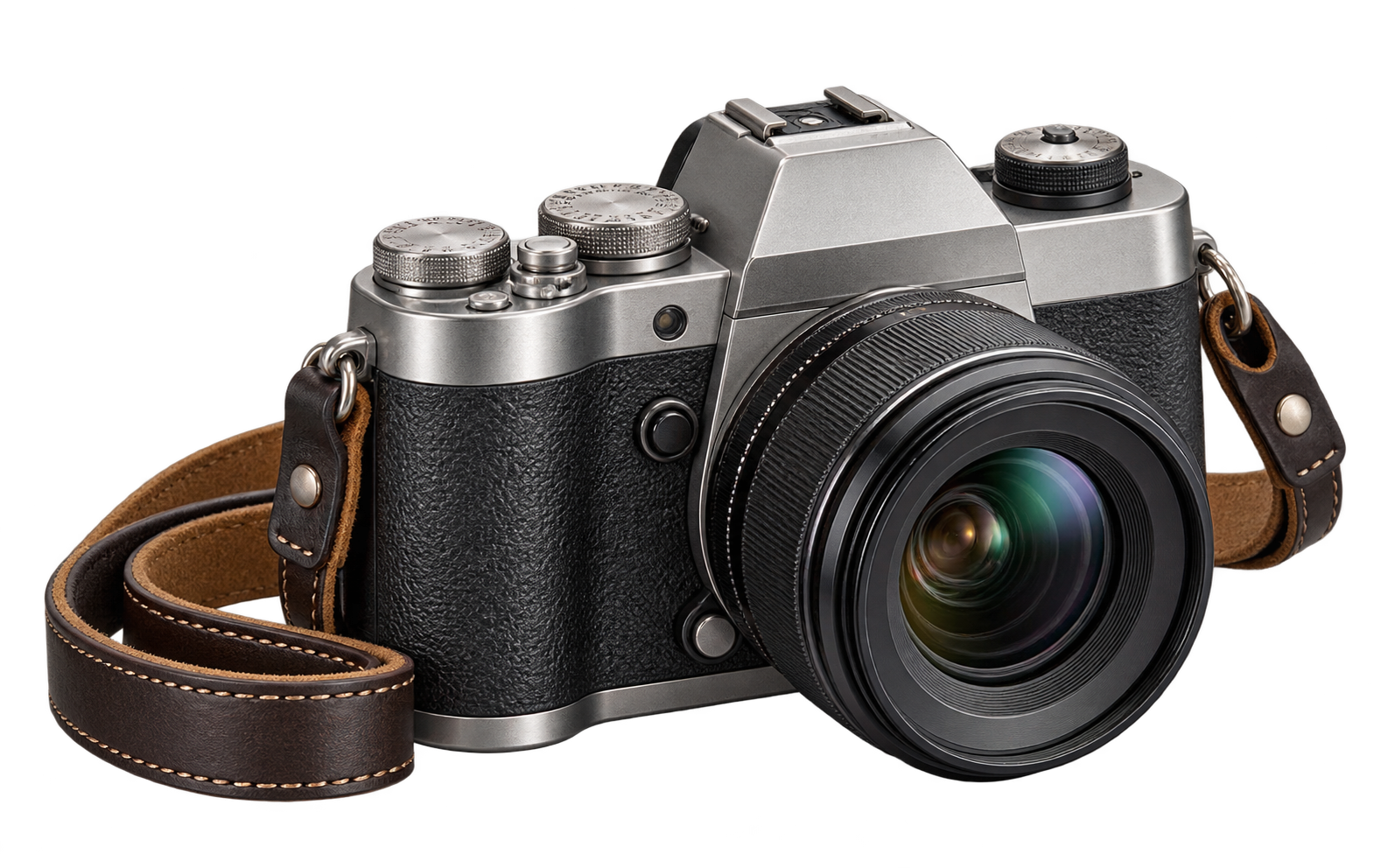
Generated studio product photograph of a silver and black camera with a leather strap
BackgroundCutout example
02

Products and Online Catalogs

Plan consistent product framing while preserving handles, edges, and material details across store pages and digital catalogs.

Generated pet photograph of a fluffy cream and silver long-haired cat
BackgroundCutout example
03

Pets and Personal Keepsakes

Inspect fluffy outlines and whiskers before placing a favorite pet into a collage, greeting card, or custom gift design.

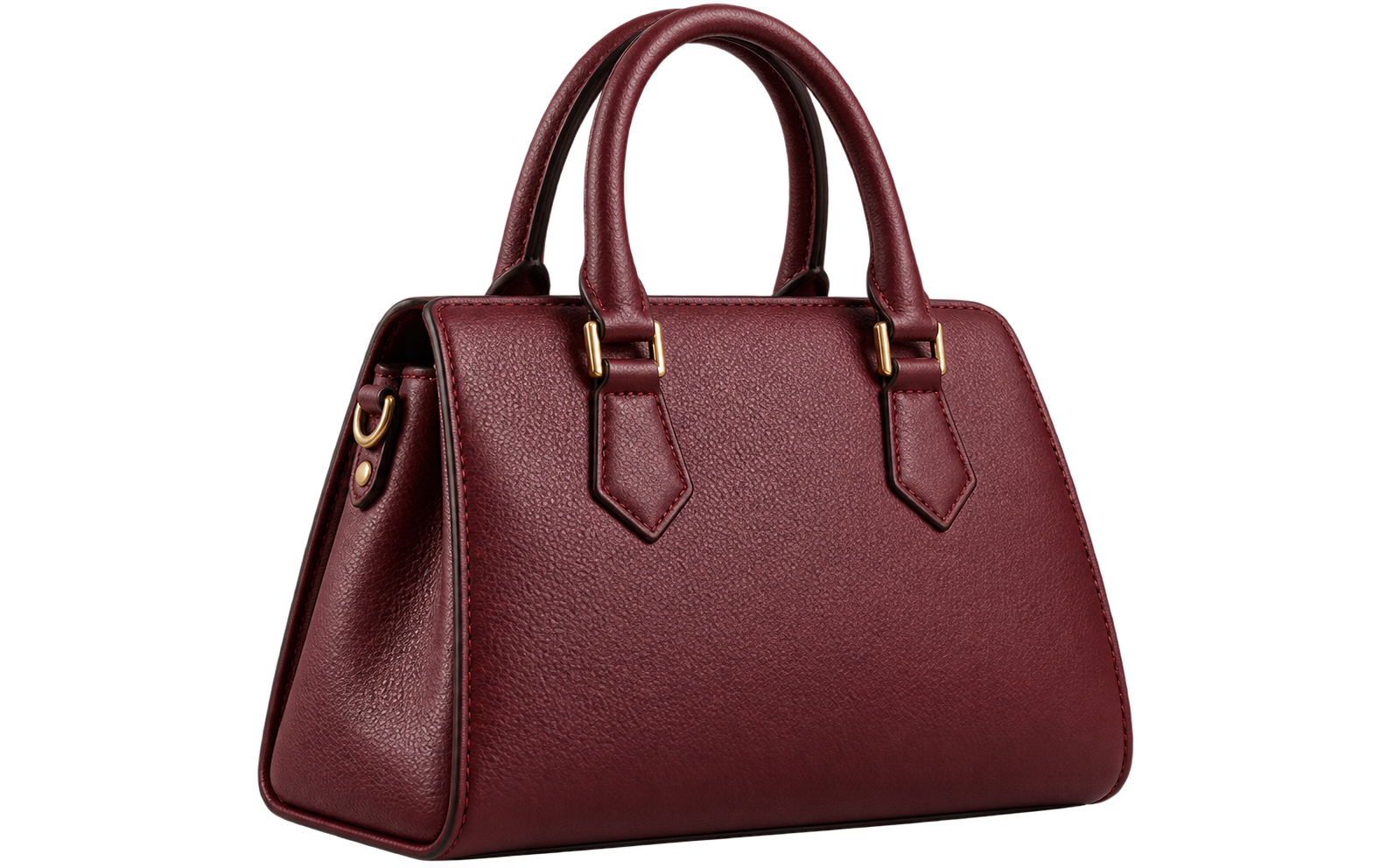
Generated fashion photograph of a burgundy leather handbag with brass hardware
BackgroundCutout example
04

Fashion and Resale Listings

Show the complete item and accurate color when preparing shoes, accessories, or clothing for a cleaner resale presentation.

Generated food photograph of tomato and basil pasta on an ivory plate
BackgroundCutout example
05

Food and Menu Graphics

Separate a plated dish for a menu layout while checking garnishes, plate rims, and shadows that help food look natural.

Generated watercolor illustration of a russet fox with blue wildflowers
BackgroundCutout example
06

Illustrations and Creative Assets

Plan reusable artwork for slides, invitations, and social graphics without carrying an unwanted rectangular background into each design.

Details before download

What Makes a Cutout Ready to Reuse?

A useful AI photo background remover workflow starts with the destination. Upload a clear original, run the cutout, and inspect its silhouette before applying the result. Export PNG for reusable transparency or choose JPG when you need a white background.

Subject-first decisions

Preserve recognizable shapes, expressions, and product details when planning a change of background.

Examples worth inspecting

Compare people, products, pets, fashion, food, and artwork to identify the details each subject needs.

Edit in your browser

Upload a photo to the AI photo background remover from desktop, tablet, or mobile without installing editing software.

Shared account credits

Enhancement and removal tools share your account balance. Each task uses 1 credit; failed or confirmed canceled tasks refund it.

Questions answered

Transparent Background and Photo Cutout FAQ

Understand transparent files, difficult edges, white backgrounds, and cloud processing before uploading. These answers explain the AI photo background remover workflow and its practical limits.

An AI photo background remover identifies the foreground subject and separates it from the surrounding image. Upload a photo in the editor and start removal to generate a transparent PNG. Review fine edges, apply the result, and download it. The generated comparisons on this landing page illustrate the workflow; your own result depends on the source photo.

Use your available account credits, including any complimentary credits. Each AI task costs 1 credit. A failed or confirmed canceled task refunds its reserved credit. Opening or exporting a saved result costs no extra credits.

A viewer may display transparent pixels over white, black, or a checkerboard. That display is not necessarily part of the file. To check a PNG, place it over a colored layer: the new color should show around the subject. JPEG does not preserve transparency. A screenshot with visible checkerboard squares keeps those squares as image pixels, even if saved as PNG.

Fine hair, fur, translucent fabric, and glass are difficult because foreground and background colors overlap. An AI photo background remover may lose strands or leave a colored fringe, especially in blurry or compressed originals. Choose good lighting and visible subject contrast. Inspect the result against light and dark colors; reflective or transparent objects may still need careful manual refinement.

Choose a white background when the final listing needs a uniform solid canvas. Keep a transparent master when you plan to reuse the product over different layouts or brand colors. These are different outputs: removing a backdrop alone does not create a finished marketplace image. Check the platform's current rules for crop, image size, shadows, and allowed background colors before publishing.

The AI photo background remover works in modern mobile and desktop browsers. Selecting a photo prepares it locally. Starting AI removal uploads it to private storage and sends a temporary image link to Replicate for processing. Source and result files are saved to your signed-in project history and require your account to access. They are not automatically deleted at the end of the session.
Plan a cleaner composition

Prepare Your Next Background-Free Photo

Start with a clear original and give your subject a reusable transparent background. Open the AI photo background remover, upload your image, and inspect the cutout before applying it. Export a transparent PNG for your next composition.

  • Automatic subject cutout
  • Transparent PNG export
  • Saved private projects
Remove Background
Romantic oil painting of a woman holding roses beside a garden pond at sunset, with the complete backgroundOriginal
The same oil-painted woman and bouquet with the background removedBackground removed